

Start here
What Mapsiti is
A travel itinerary app for iPhone, iPad, Mac and Apple Vision Pro. It draws routes between your stops, estimates distance and time, and syncs through iCloud — no account, no password.
One app, four layouts
Travel Animation is available on iPhone, iPad and Vision Pro — not on Mac. Everything else is identical everywhere.
Getting started
First launch shows a short four-screen introduction you can skip. Then four things set you up.
- 1Sign in to iCloudso trips sync and can be shared
- 2Allow locationso the map can show where you are
- 3Allow notificationsso you know when a trip is shared with you
- 4Create a tripand start adding stops
The in-app version of this guide lives in Settings › Tutorials & Help.

Plan
Itineraries
An itinerary is one trip: a name, a date range, optional notes, and an ordered list of stops. Your list shows every trip you own and every trip shared with you.
- 1Tap +in the itineraries list
- 2Name itadd dates and notes if you like
- 3Createthe trip opens on the map
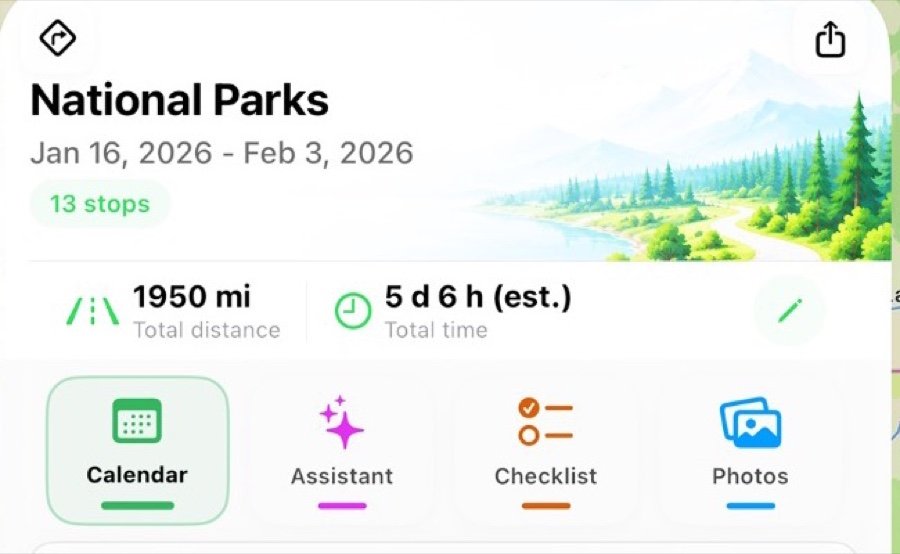
From a trip you can rename it, change dates and notes, Duplicate it as the basis for a similar one, or delete it.
Free: one itinerary of your own. Trips shared with you never count.
Adding stops
A stop is a place on your route. Four ways to add one.
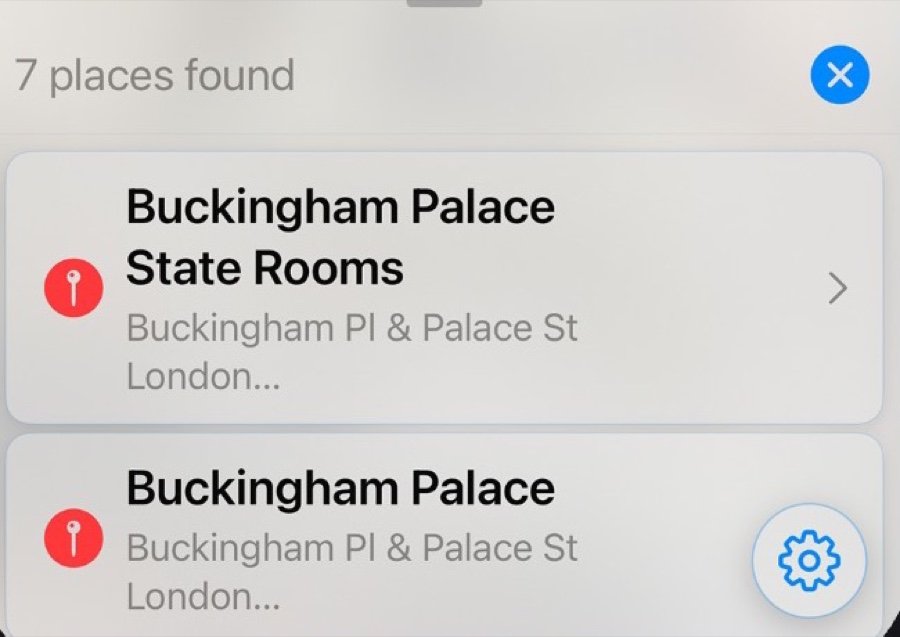
- SearchType a place, an address or a contact.
- Tap a placeAny point of interest Apple Maps already shows.
- Long-pressHold anywhere on the map. Pick a nearby place or keep the exact spot.
- Custom pinA long-press can also save your own title and address — a trailhead, a meeting point.
Three search modes
- Placesbusinesses, landmarks
- Addressfull or partial
- Contactsaddresses on contact cards
Contacts search is off by default — turn it on in Settings › Privacy. Search pins stay on the map until you tap Clear search pins.
Free: four stops per itinerary you own. The fifth prompts an upgrade.
Inside a stop
Open a stop — from the list or by tapping its numbered pin — and everything attached to that place is in one card.

- Name & address
- Tap the name to edit; the pencil re-picks the address.
- Duration
- Days and hours here. The rest of the trip shifts to match.
- Notes
- Free text, with a full-screen rich editor.
- Photos
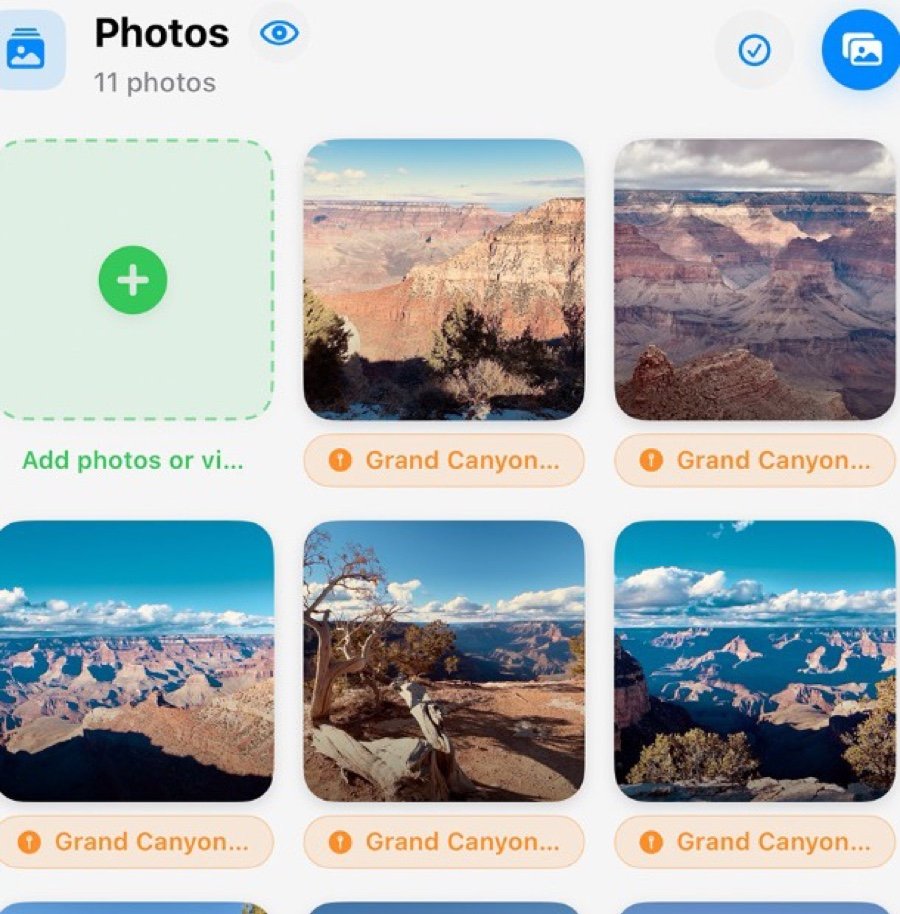
- From your library or the camera. Multi-select to delete in bulk.
- Checklist
- Tick-off items for this stop.
- Phone & website
- Carried over from the listing, tappable.
Activities & reservations
The things you do at a stop: a hike, a museum, a dinner booking, a hotel check-in. Each carries a title, an address, a date, a time and photos.
- 1Open a stoptap Add activity… or Add reservation…
- 2Give it a titleaddress, date and time are optional
- 3Attach photosif useful
- 4Saveit appears in the stop's list and on the map
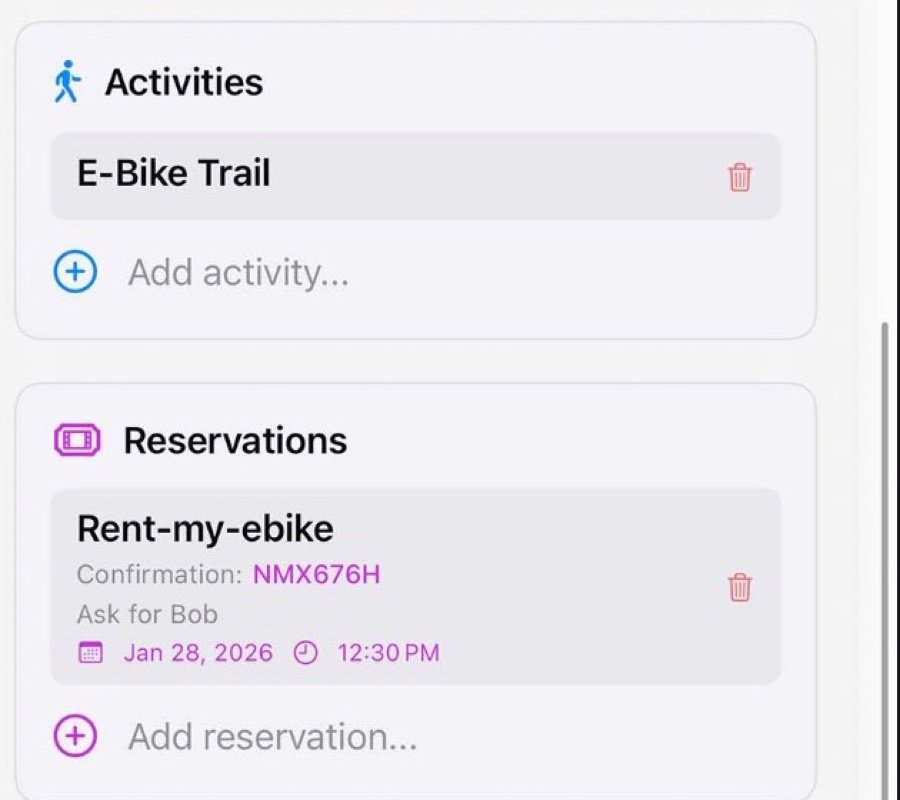
Drag items to reorder them, tap one to edit, or move it to a different stop from its editor — handy when a booking turns out to belong to the next town. An item needs a title or an address to appear on the map.
Routes & transport
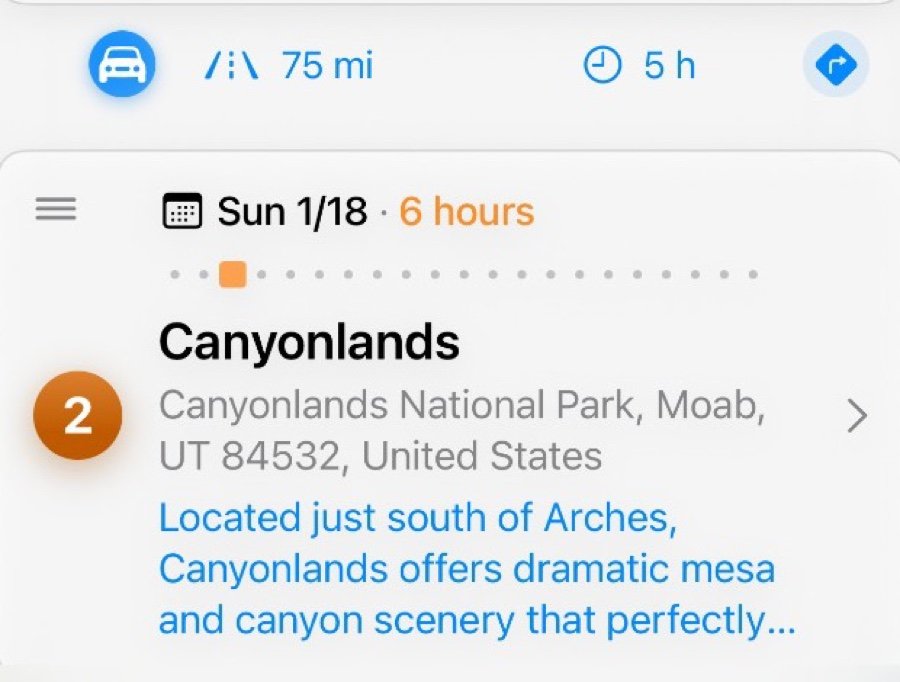
Mapsiti draws a route between consecutive stops and reports the distance and time of each leg. The mode is set per leg — a trip can drive, then fly, then walk.

- Carroad directions
- Walkingwalking directions
- Transitreal schedules where Apple Maps has them
- Bicyclewalking route, cycling speed
- Airplanea great-circle arc
- 1Open the itinerarystops show with the legs between them
- 2Tap a leg's iconto change the mode for that leg
- 3Routes recalculateon their own, or manually if Auto-calculate is off
Reordering stops
Tap the number and type the position you want, or drag the ≡ handle. Routes recalculate either way.
No road between two points? The leg is drawn straight and marked as an estimate. Routes are cached, so reopening a trip is instant. Units and the default mode live in Settings › Routes.
Calendar
See the trip by day inside the app, or export it to Apple Calendar so it sits alongside the rest of your life.
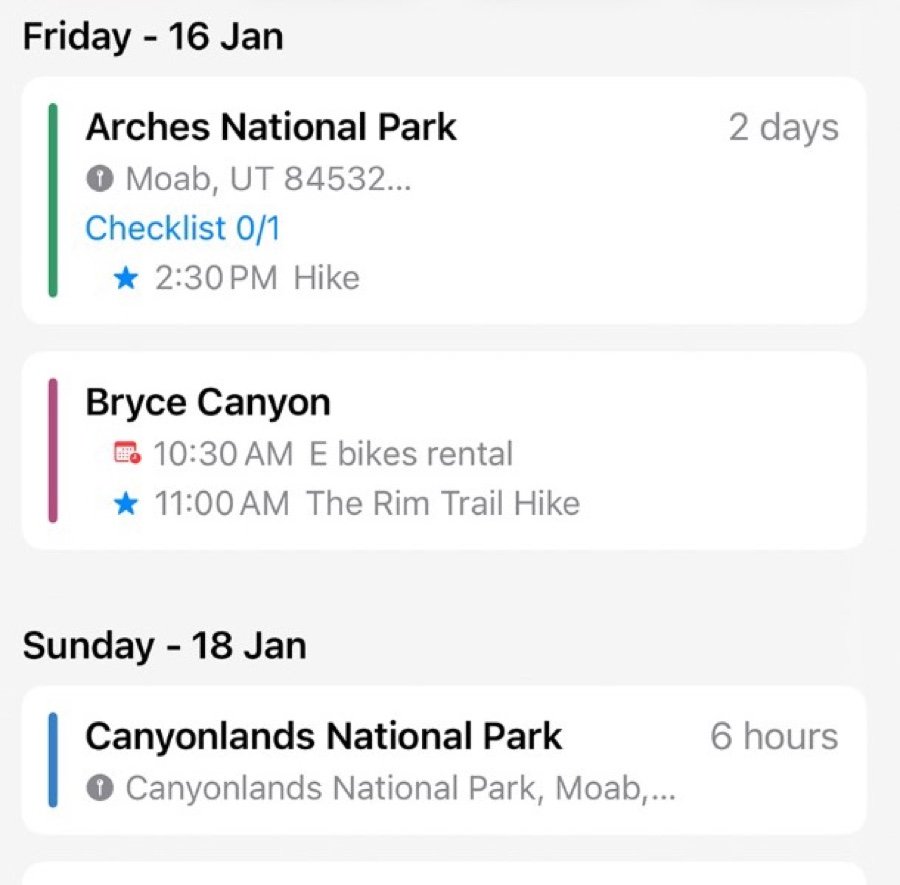
Add to Calendar
- 1Open the trip's actionschoose Add to Calendar
- 2Pick a calendaror let Mapsiti create one named after the trip
- 3Doneeach stop becomes an all-day event; later changes sync
Calendar access is requested the first time. If refused, grant it in the system Settings app.

On the road
A stop on the map
Open a stop and the map zooms to fit that stop and everything attached to it — nothing else from the trip.
How an item finds its place
- Saved coordinateif the item has one
- Its addressotherwise
- Its titlesearched near the stop
Once resolved, the location is saved — reopening is instant and works offline. An item that can't be placed anywhere near its stop is left off the map rather than shown somewhere wrong.
Map features
Pinch to zoom, drag to pan, tilt and rotate with the usual Maps gestures.
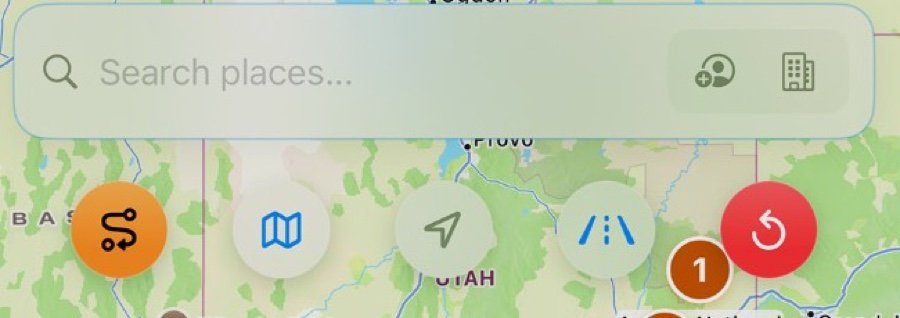
Map styles
Photos
Attach photos to stops, activities and reservations. Every image in a trip also collects into one album — in the app and in Apple Photos, named after the trip.
AI Assistant
In the Assistant tab of any trip. It already knows your stops, so there's nothing to paste in.
- Plan a tripdescribe where, when and what you like — it proposes stops, activities and bookings you add in one tap
- Chat about itask follow-ups; it updates existing items instead of duplicating them
- Get recommendationswith a stop saved, it suggests places along your route

What it sees
The assistant is off until you accept a consent screen. The provider is Anthropic, as a subcontractor: it processes data only to produce the reply, gains no rights over it and does not train on it. Free: 5 messages per trip and 5 requests per month, resetting on the 1st. Premium: unlimited messages, 300 requests a month.

Share
Sharing a trip
Any itinerary can be shared through iCloud. Sharing is free, and so is accepting a trip someone sends you.
- 1Tap Sharein the itinerary
- 2Choose a levelView only or Can edit
- 3Send the inviteMessages, Mail, AirDrop, anything
Recipients tap the link, then Accept Invitation. The sharing screen lists everyone with access; remove people or change their level any time.
Travel Animation
An animated fly-through of the route, captioning each stop with its name, its place in the trip, how long you stay and the leg that reaches it. Export it as a movie.
- 1Open Sharein the itinerary
- 2Share Your Travel Animation
- 3Create Animationwait while it renders
- 4Recreate or Export Moviesave or send the file
Needs at least two stops. Available on iPhone, iPad and Vision Pro — not on Mac.

Reference
Settings
| Map | Show My Location on Launch · Auto-hide Map Controls |
|---|---|
| Interface | Haptic Feedback |
| Sync | Show Sync Status · Sync Interval (including Manual) |
| Routes | Default Transport (walking, driving, transit) · Distance Unit · Auto-calculate Routes |
| Privacy | Enable Contacts Search — off by default |
| More | Tutorials & Help · Subscribe to Premium · Feature request · Rate App · Terms · Privacy Policy |
Default Transport offers three modes; bicycle and airplane are chosen per leg.
What syncs
Sync runs through your own iCloud — no Mapsiti account, no password. Not everything travels, and it matters when you switch devices or share.
& people you share with
Free vs Premium
Two limits, and they apply only to trips you create. Trips shared with you never count, and you can always follow a friend's trip without subscribing.
- Itineraries you own1
- Stops per itinerary4
- AI messages per trip5
- AI requests per month5
- Sharing & accepting tripsUnlimited
- Itineraries you ownUnlimited
- Stops per itineraryUnlimited
- AI messages per tripUnlimited
- AI requests per month300
- Sharing & accepting tripsUnlimited
Premium is a monthly or yearly subscription from Settings › Subscribe to Premium, managed in your Apple account. Earlier one-off lifetime purchases keep Premium permanently.
Troubleshooting
Trips aren't syncing between devices
- 1Same Apple Account on both deviceswith iCloud Drive on
- 2Connection, and Sync Interval not set to Manual
- 3Pull down the itineraries listto refresh
- 4Force Re-pull from iCloudSettings › Developer Options. Safe: it re-downloads everything, deletes nothing
A shared trip won't open, or the invitation fails
The recipient needs to be signed in to iCloud with Mapsiti installed, and notifications allowed — sharing uses them to deliver the invite. Failing that, ask the sender to resend.
Photos are missing on another device
Expected. Stop photos are device-local by design — see What syncs.
A pin is in the wrong place
Items are located from their address, or their title, and can occasionally match the wrong place. Editing the address afterwards doesn't re-locate it — delete the item and add it again.
Map out your next trip.
Free on iPhone, iPad, Mac and Apple Vision Pro.
Download on theApp Store